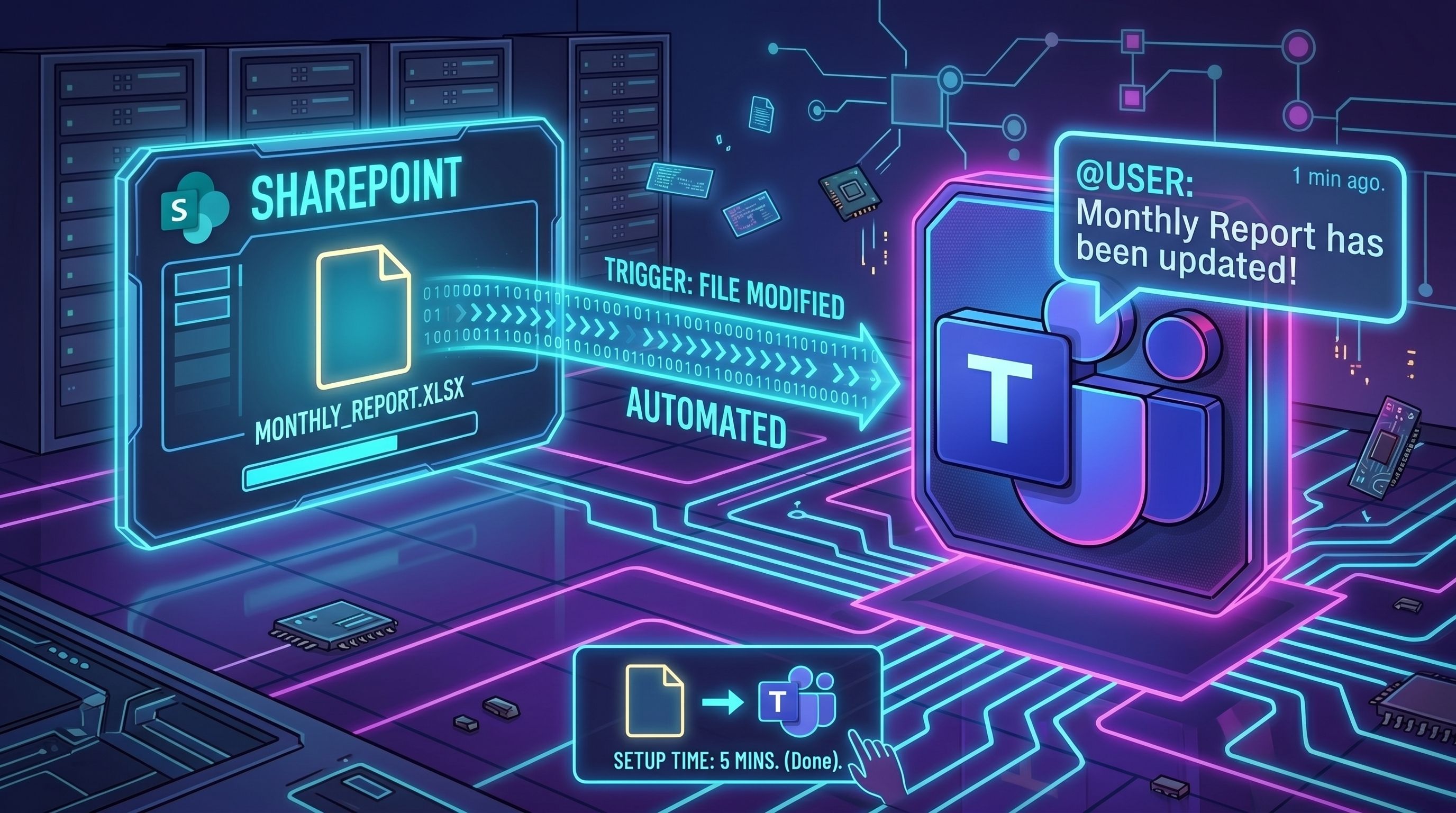
Power Automate SharePoint Trigger: Teams Alerts
Someone uploads the updated report. You don't know. You check the SharePoint folder. It's not there yet. You check again an hour later. It was uploaded at 9am.
Here's the five-minute fix: a Power Automate flow that watches a SharePoint folder and posts a Teams message the moment a file lands.
How to do it
What you need
Power Automate (already in your M365 plan)
The SharePoint library where the file lives
A Teams channel to notify.
Set your trigger
- Go to make.powerautomate.com and create a new Automated cloud flow.
- When asked to choose a trigger, pick "When a file is created or modified (SharePoint)".
- Set Site Address to your SharePoint site and Library Name to the document library.
- If you want to watch a specific subfolder rather than the whole library, set the Folder field - otherwise it fires on anything in the library.
Add an action
- Post message in a chat or channel (Microsoft Teams).
- Choose your channel, then write the message body.
- Use the dynamic content panel to pull in the File name and the Link to item - that direct link is the part that saves the most time.
- Save.
- Upload a test file to the SharePoint folder.
- The Teams notification should arrive within about a minute.
Why it works
SharePoint fires an event every time a file is created or modified. Power Automate subscribes to that event and translates it into a Teams message. There's no polling, no scheduled check - the notification arrives because something happened, not because something was looking for it.
That distinction matters when you're thinking about how reliable these flows actually are. Event-driven triggers are generally more dependable than scheduled ones, but they're not infallible - if the SharePoint event doesn't fire cleanly, neither does your notification.
When not to use it
If the library has dozens of files changing constantly, this gets very loud very fast - think twice before pointing it at a shared working folder.